Help

Run your first useful 1:1 in OTO

This guide walks through the main OTO workflow: planning a 1:1, running the conversation, capturing follow-up, and using insights to spot patterns over time.

Create your workspace

Sign up, confirm your account, and invite the managers or team members who should be part of the 1:1 workflow.

Plan the next 1:1

Create a meeting, choose the person, set the time, and pull in useful questions for the conversation.

Run the conversation

Use the agenda live, capture notes, flag questions, and turn decisions into action items before the meeting ends.

Dashboard

Start each day from what needs attention

The dashboard shows upcoming 1:1s, open action items, and flagged questions. Use it before meetings to see what needs follow-up and after meetings to check what is still open.

  1. 1 Open the dashboard after logging in.
  2. 2 Review upcoming meetings and any questions marked as needs attention or on hold.
  3. 3 Use the action item list to see what still needs follow-through.
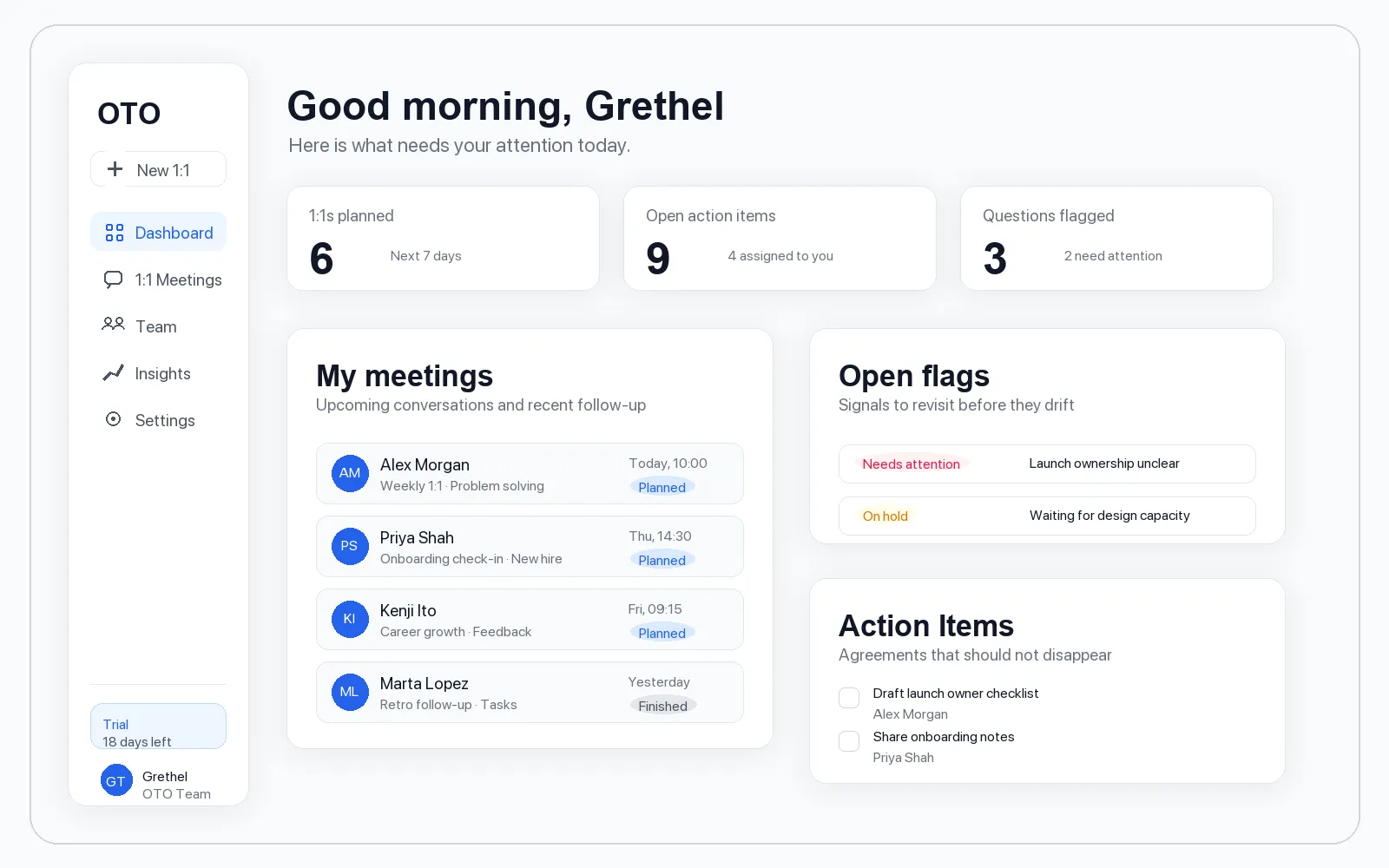
OTO logged-in dashboard showing upcoming 1:1 meetings, open flags, and action items

1:1 workspace

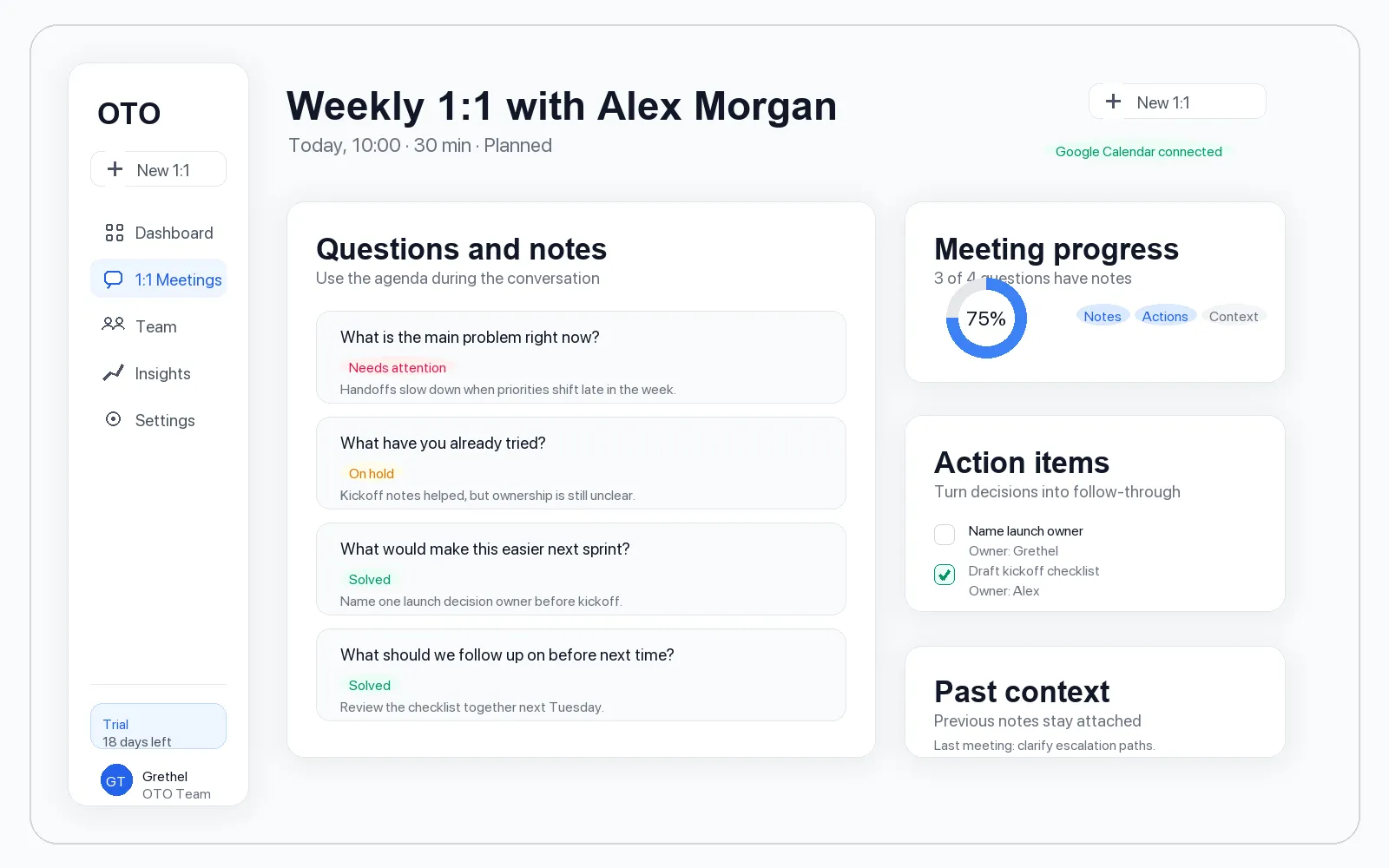
Run the meeting from one focused screen

A 1:1 page keeps questions, notes, action items, meeting progress, and past context together. The example below shows a manager preparing a weekly conversation with Alex Morgan.

  1. 1 Create a new 1:1 or open an upcoming meeting from the dashboard.
  2. 2 Use a template or add custom questions for the person and situation.
  3. 3 Write notes under each question, flag important answers, and add action items while the context is fresh.
  4. 4 Finish the meeting when the useful parts have been captured.
OTO logged-in 1:1 meeting workspace with questions, notes, progress, action items, and past context

Insights

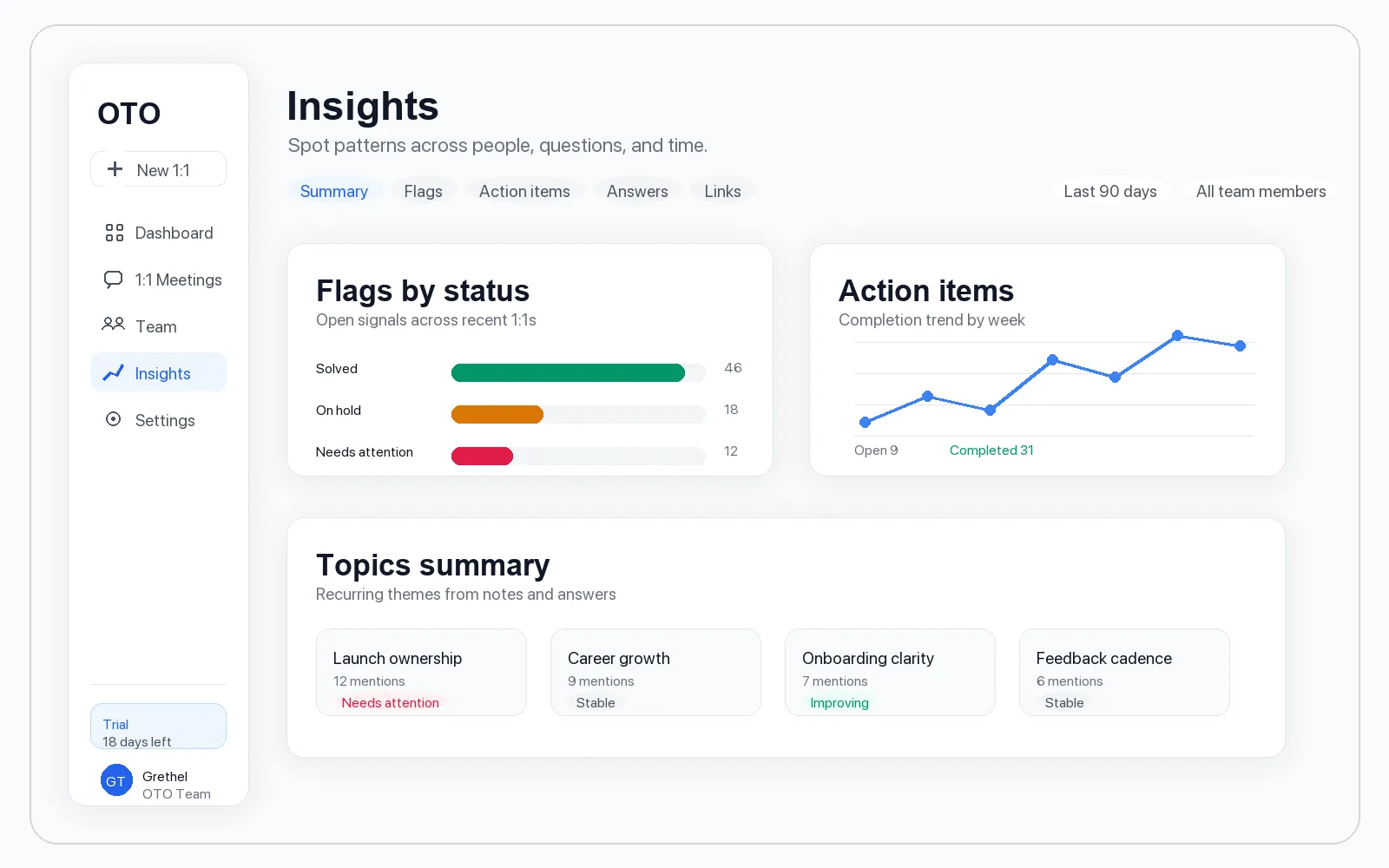
Spot patterns without chasing status updates

Insights summarize recurring flags, action item completion, and themes across conversations. This helps managers and people teams see what is improving and what needs attention.

  1. 1 Open Insights to review trends across recent 1:1s.
  2. 2 Filter by timeframe or team member when you need a narrower view.
  3. 3 Use recurring topics and flagged questions to decide what to revisit next.
OTO logged-in insights page showing flag status, action item trends, and topic summaries

Common tasks

A few useful things to know early

Invite people

Use the Team area to add people who should appear in 1:1s and reports.

Connect calendar

Connect Google Calendar from settings when you want meeting times and links to stay in sync.

Look back at history

Open an older 1:1 from the person's meeting history to recover previous notes, flags, and action items.

Export or copy a summary

Use meeting options when you need a clean summary for follow-up outside OTO.

Need help with your setup?

Send a note to info@heyoto.eu with what you are trying to set up. If your team wants a walkthrough, book a demo and we will help you map OTO to your 1:1 workflow.

Stop guessing what's going on in your team. Start having 1:1s that actually matter.